
Description: When service work is completed, service technicians at the repair location can obtain customer authorization and signature in a point-of-sale environment.
Step 1:
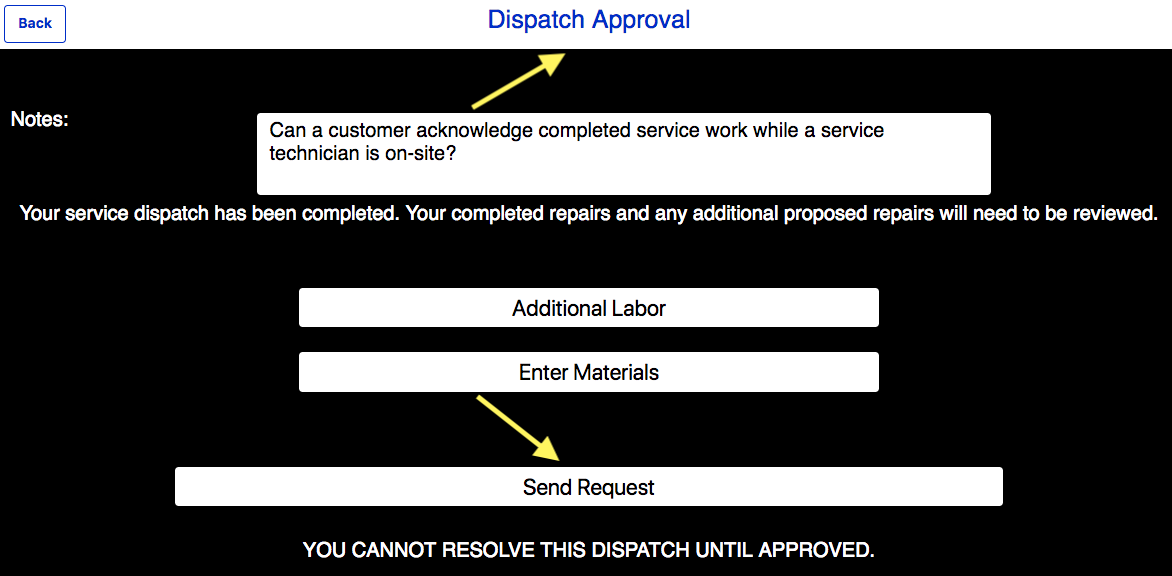
Dispatch Approval record: Utilizing the mobile application, service technicians will click on “Send Request”. This notifies the service manager to review and verify all supporting documents meet service requirements.
Step 2:
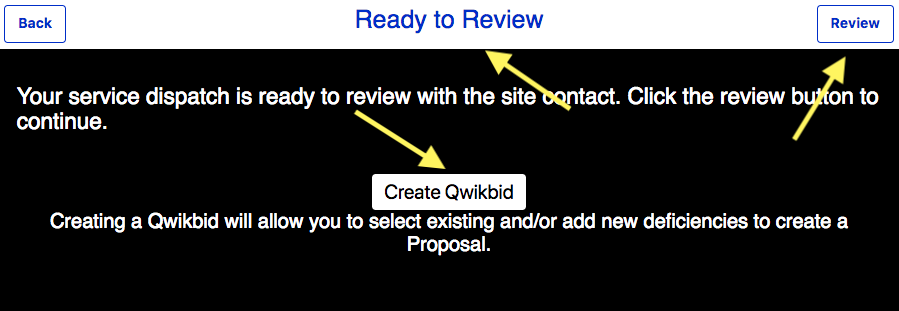
Ready to Review record & Qwikbid: If service technicians have an opportunity to complete a “Qwikbid” they should do so and complete customer authorization. If not click on “Review”.
Step 3:
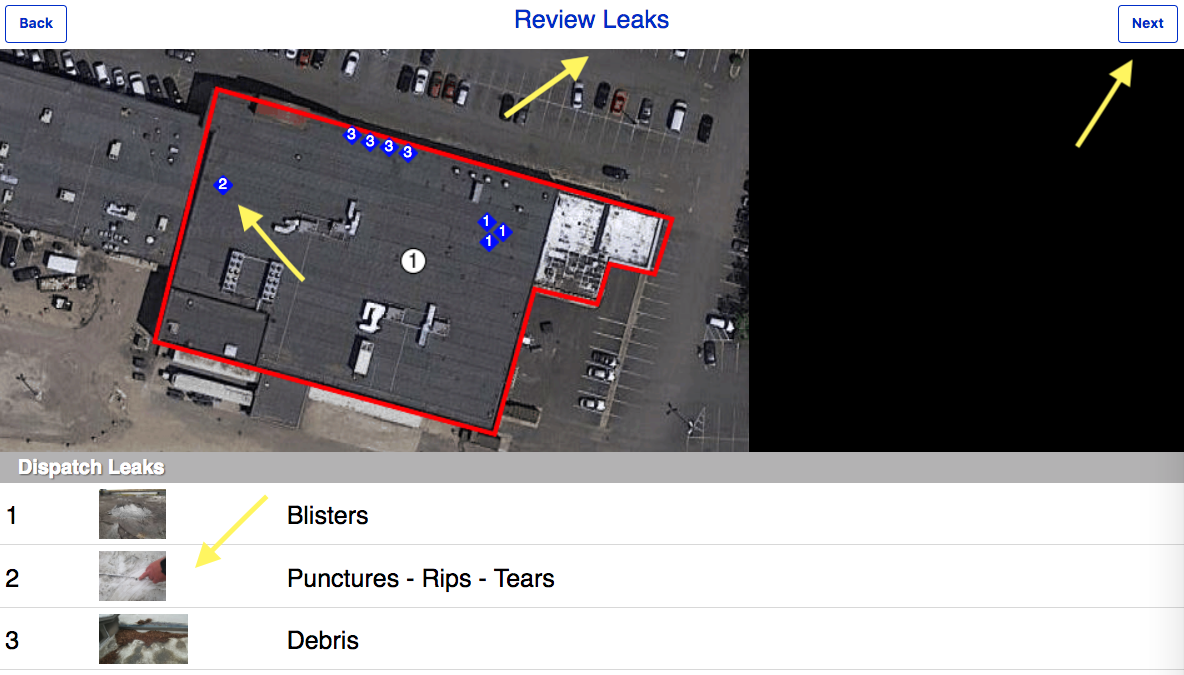
Review Leaks record: Review leaks allows you to click on and review individual deficiencies captured in the field to ensure supporting documents are correct. Once documents are verified click “Next”
Step 4:
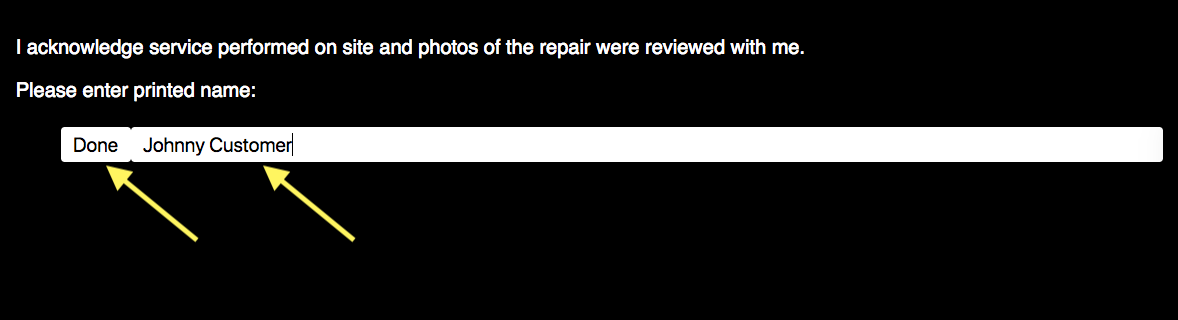
Acknowledgment page: The acknowledgment page allows the service technician to type in the customer name who reviewed the repairs and supporting documents. Once the customer's name has been typed into the line provided click “Done”.
Step 5:
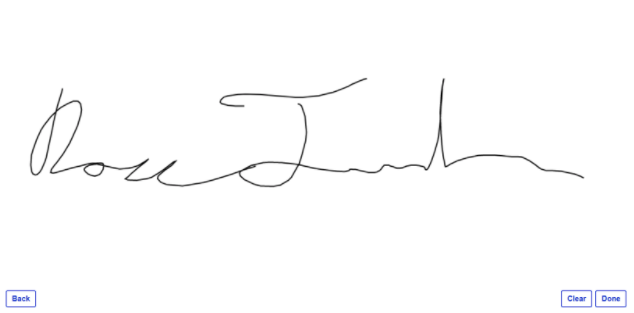
Signature page: The signature page will enable the customer to authorize and sign indicating all service work has been completed to the customer's satisfaction.
Step 6:
The email record: Once the customer authorization is completed, the service technician is able to email a pdf. including location and section data and supporting documents.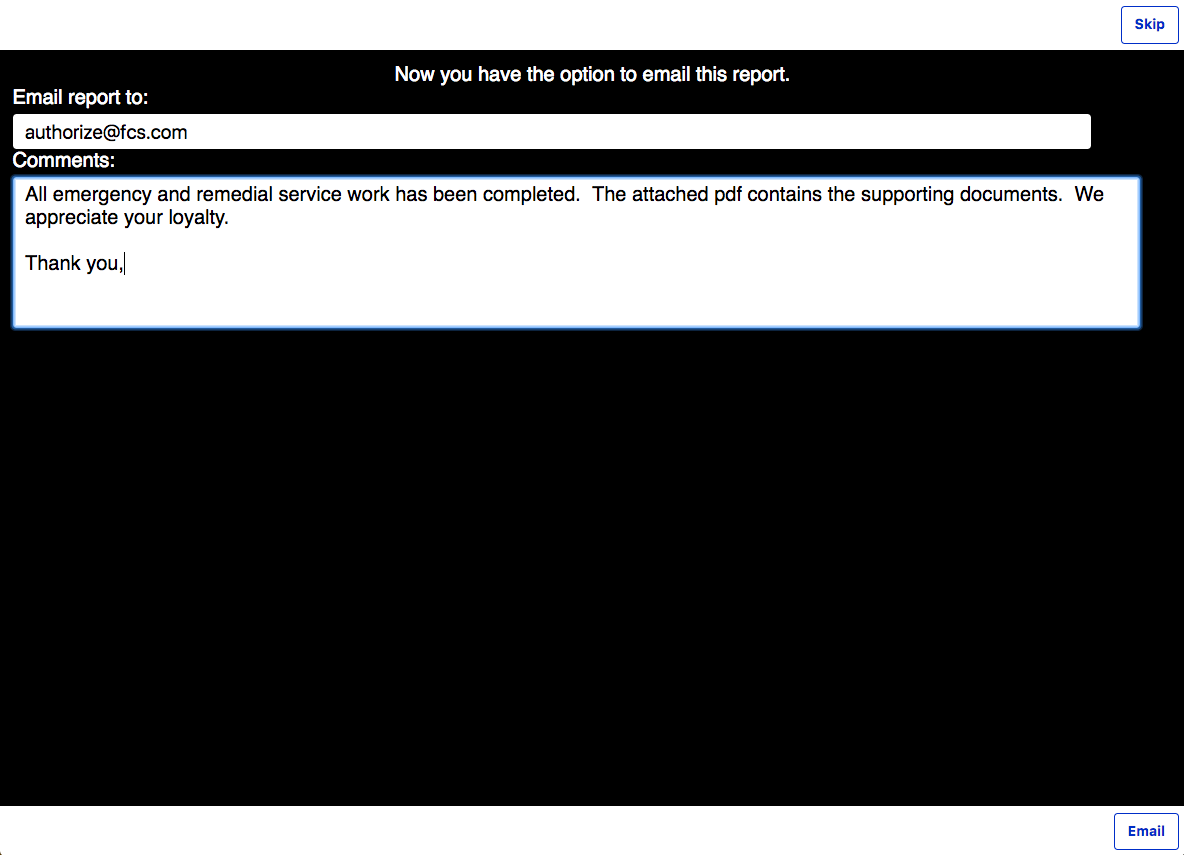
This tutorial demonstrates the process for a service technician completing service work, reviewing supporting documents, and capturing a signed authorization from the customer while on-site.
Comments
Please sign in to leave a comment.